
 24 Hour Service
- 800.825.3222
- Now Hiring
- Request A Quote
10 Tips for Choosing the Best Windows Laptop
Choosing the right Windows Laptop is no longer a simple question of screen size or processor speed. Today’s buyers must balance portability, battery life, repairability, security, and artificial intelligence features. Canalys reported that worldwide PC shipments reached approximately 255 million units in 2024, showing that computers remain essential for work, study, and creative tasks. Yet more choices can create more confusion.
Panos Panay, former Microsoft executive responsible for Windows and Surface, once said, “The PC is more important than it has ever been.” His observation still feels accurate. A student carrying a laptop between classrooms needs a different machine from a designer working with large video files. A bright 14-inch display may look impressive in a store, but poor battery life can become frustrating on a long train journey. Small details matter.
This guide, “10 Tips for Choosing the Best Windows Laptop,” examines those practical differences. It considers processor performance, memory, storage, display quality, keyboard comfort, connectivity, operating-system support, and total ownership cost. Data from IDC and Gartner also show a competitive PC market, where premium and budget models continue to serve very different users. Specifications can mislead. I have seen laptops with impressive numbers feel slow because of weak cooling or limited memory. That is worth remembering.
There is no perfect Windows Laptop for everyone. There is only the better match. These tips will help you compare confidently, avoid attractive compromises, and choose a device that remains useful after the excitement of purchase fades.
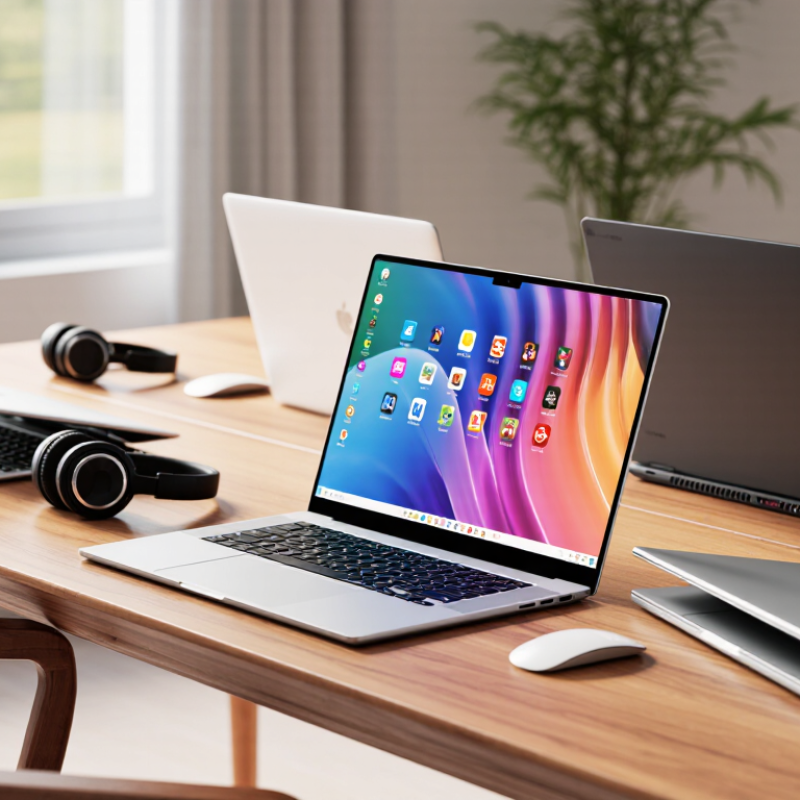
Verify Windows 11 support: 4GB RAM, 64GB storage, TPM 2.0 (Microsoft)
When choosing a Windows laptop, verify Windows 11 support before comparing screen size or keyboard design. The minimum memory requirement is 4GB RAM, but that amount can feel restrictive during daily use. A browser with several tabs, a video call, and a document may quickly consume it. I would treat 8GB as a more practical starting point for ordinary work.
Storage also matters. Windows 11 requires at least 64GB of available storage, yet the operating system and updates will occupy part of it. A 64GB drive can become crowded after installing applications, saving photos, and downloading offline files. Choose more capacity when possible. Solid-state storage usually feels faster, especially when opening programs or waking the laptop.
Check for TPM 2.0, a security component that helps protect encryption keys and supports system security features. The laptop should also use compatible firmware settings and a supported processor. Open the system information panel or firmware menu, rather than trusting a sales label alone. I have seen inexpensive laptops meet one requirement but fail another. That mistake is easy to make. Minimum specifications are not comfort specifications. Leave room for updates, multitasking, and future software. If the device barely passes today, it may disappoint sooner than expected.
10 Tips for Choosing the Best Windows Laptop
| No. | Selection Dimension | Recommended Specification | How to Verify | Why It Matters |
|---|---|---|---|---|
| 1 | Operating System Compatibility | Choose a laptop that supports a 64-bit installation of Windows 11. | Check the official specifications and confirm that the device is designed for Windows 11. | Compatible firmware and drivers help ensure reliable updates, security, and hardware support. |
| 2 | Processor | Use a 64-bit processor running at least 1 GHz with two or more cores; a newer multi-core processor is preferable. | Review the processor model, core count, clock speed, and operating-system compatibility list. | The processor affects application responsiveness, multitasking, battery efficiency, and long-term usability. |
| 3 | Memory | At least 4 GB of RAM is required; 8 GB is a more practical starting point for everyday use. | Confirm the installed RAM and whether it is upgradeable or permanently soldered. | More memory improves browser multitasking and reduces slowdowns when several applications are open. |
| 4 | Storage | At least 64 GB of storage is required; a 256 GB or larger solid-state drive is recommended. | Check the drive type, usable capacity, and whether a second drive or replacement is supported. | Solid-state storage provides faster startup and file access, while additional capacity allows room for updates and applications. |
| 5 | Security Firmware | Verify the presence of TPM 2.0, UEFI firmware, and Secure Boot capability. | Open the firmware settings or system security information and confirm that TPM and Secure Boot are available. | These features support device encryption, protected startup, and modern operating-system security requirements. |
| 6 | Display | Select a display larger than 9 inches with at least 1280 × 720 resolution; Full HD is preferable for daily work. | Check the diagonal size, native resolution, panel type, brightness, and viewing angle. | A sharper, brighter display improves text readability, productivity, and comfort during extended use. |
| 7 | Graphics Capability | Use graphics hardware compatible with DirectX 12 and a WDDM 2.0 or newer display driver. | Review the graphics processor specification and confirm driver support for the intended operating system. | Graphics capability affects video playback, creative applications, external displays, and gaming performance. |
| 8 | Battery and Charging | Prefer a battery rated above 45 Wh and a USB-C charging option when portability is important. | Check the battery capacity, charger wattage, charging standards, and published test conditions. | Battery capacity and efficient charging reduce dependence on power outlets while traveling or studying. |
| 9 | Portability and Build | For frequent travel, consider a weight below 1.6 kg, a rigid chassis, and a comfortable hinge. | Compare the listed weight, thickness, materials, hinge design, and keyboard durability. | Lower weight improves mobility, while a durable structure helps the laptop withstand regular transport. |
| 10 | Connectivity and Upgradeability | Look for Wi-Fi 6 or newer, Bluetooth 5 or newer, at least two USB ports, video output, and accessible upgrade slots where possible. | Check the complete port list, wireless standards, webcam features, memory layout, and storage expansion options. | Good connectivity supports peripherals and external displays, while upgrade options can extend the laptop’s useful life. |